
How to use CaseSlate
Search for what you want to do, or pick a topic below. Red circles in the pictures show where to click.
Getting started
Sign in
Each office has its own CaseSlate account. There is no public sign-up — accounts are set up for you.
- Go to caseslate.com and click Sign in.
- Enter the email and password for your office's CaseSlate account, then click Sign In.
- You land on the Dashboard. To leave, click Sign Out at the bottom of the left menu.
Find your way around the Dashboard
The Dashboard lists every upcoming case. It updates on its own while emails are going out — no need to refresh.
- Use the tabs to switch between All upcoming, Needs time (cases still waiting on a time) and Recently added (cases added in the last 7 days).
- Type a name in Search patient… to find a case quickly.
- The Notifications column shows whether each case's emails went out: All sent, Sending, Retrying or Failed.
- Click a patient's name to open the case.
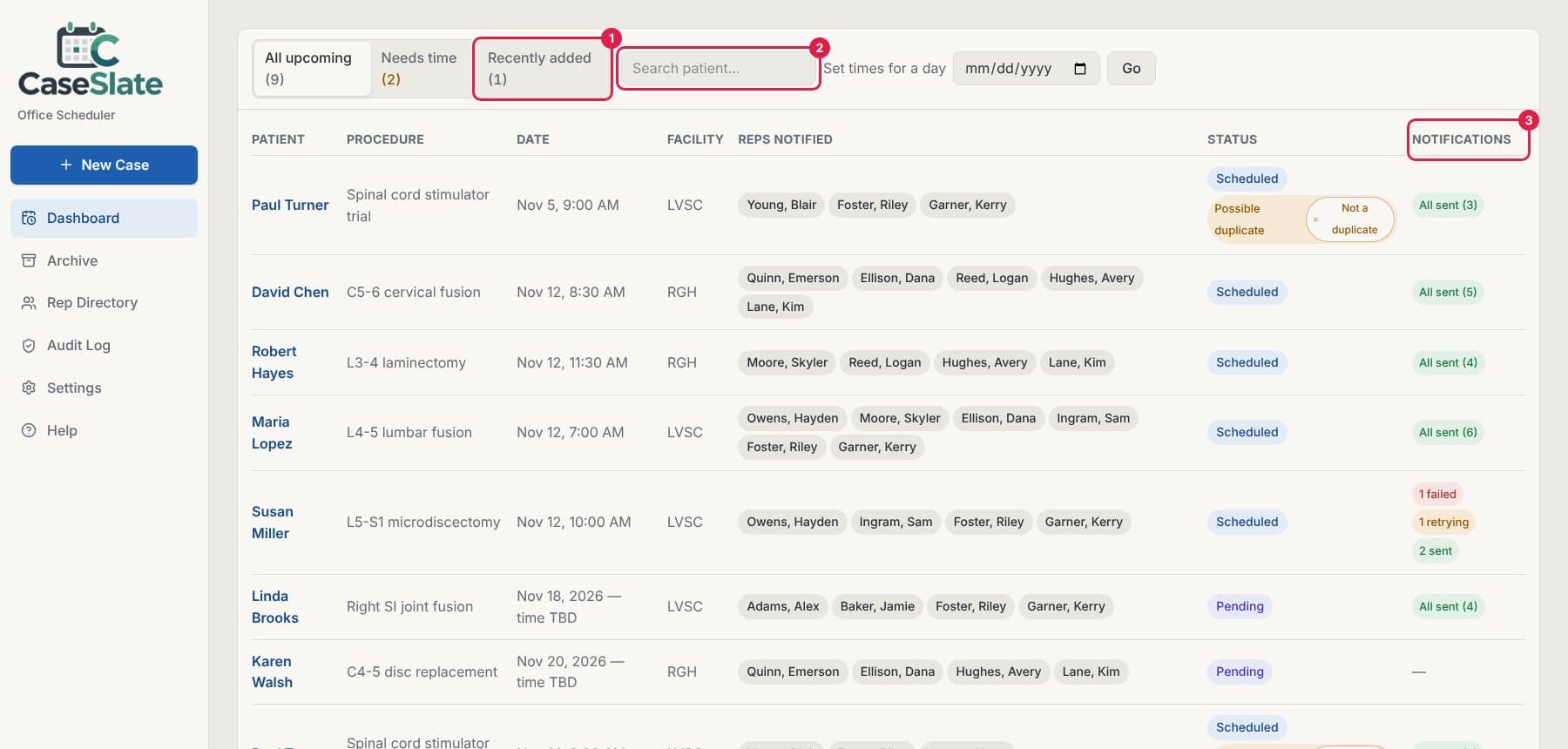
- Tip: The number next to Dashboard in the left menu is how many upcoming cases still need a time.
Adding cases
Add a new case from a surgery order sheet
Upload the surgery order sheet and CaseSlate reads it for you. Nothing is emailed until you check it and confirm.
- Click New Case at the top of the left menu.
- Click Choose File & Extract and pick the order sheet — a PDF, or a photo (JPG or PNG) of the sheet.
- Wait a few seconds while CaseSlate reads the sheet. The review screen opens on its own.
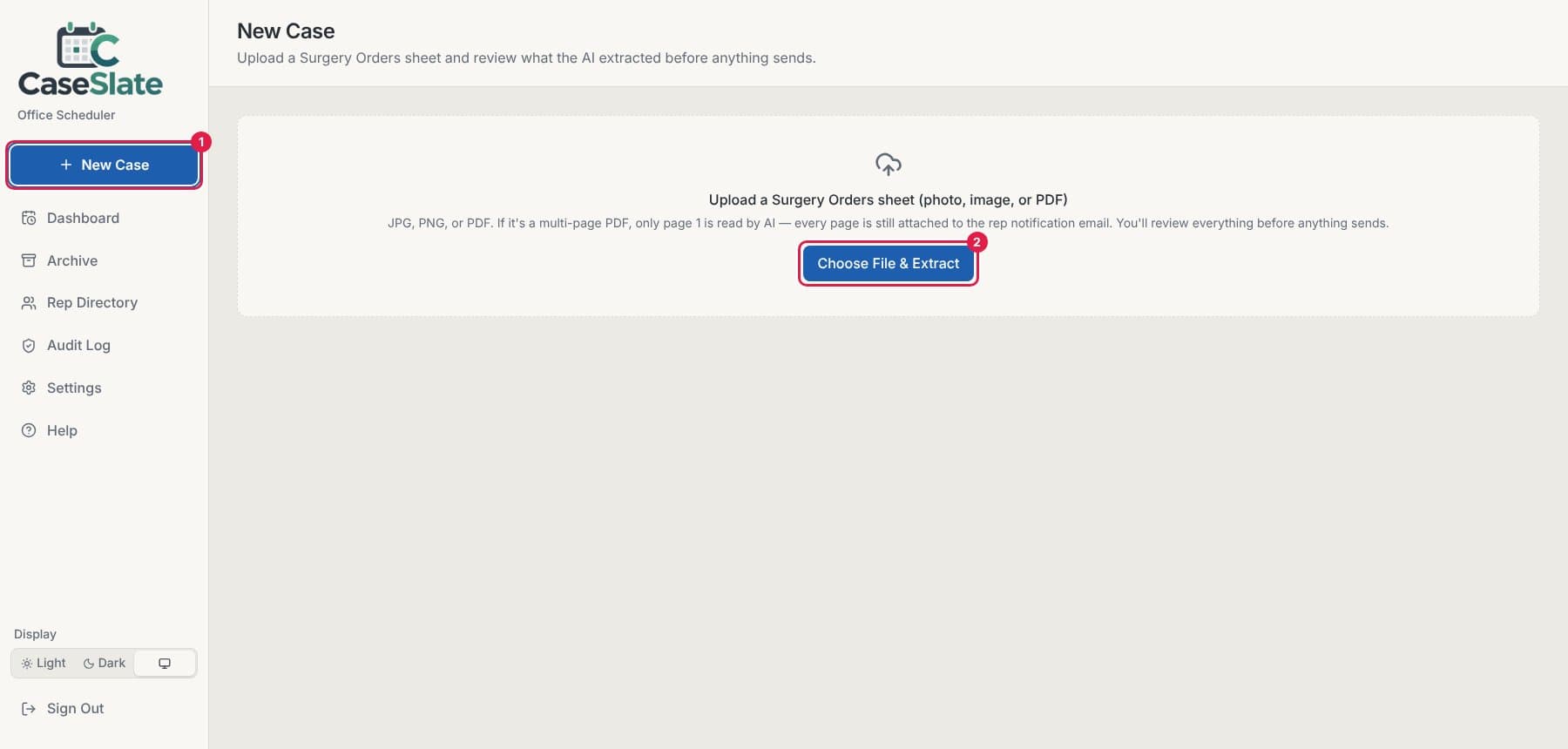
- Tip: If the PDF has several pages, only page 1 is read, but every page is still attached to the email the reps get.
Check what CaseSlate read from the sheet
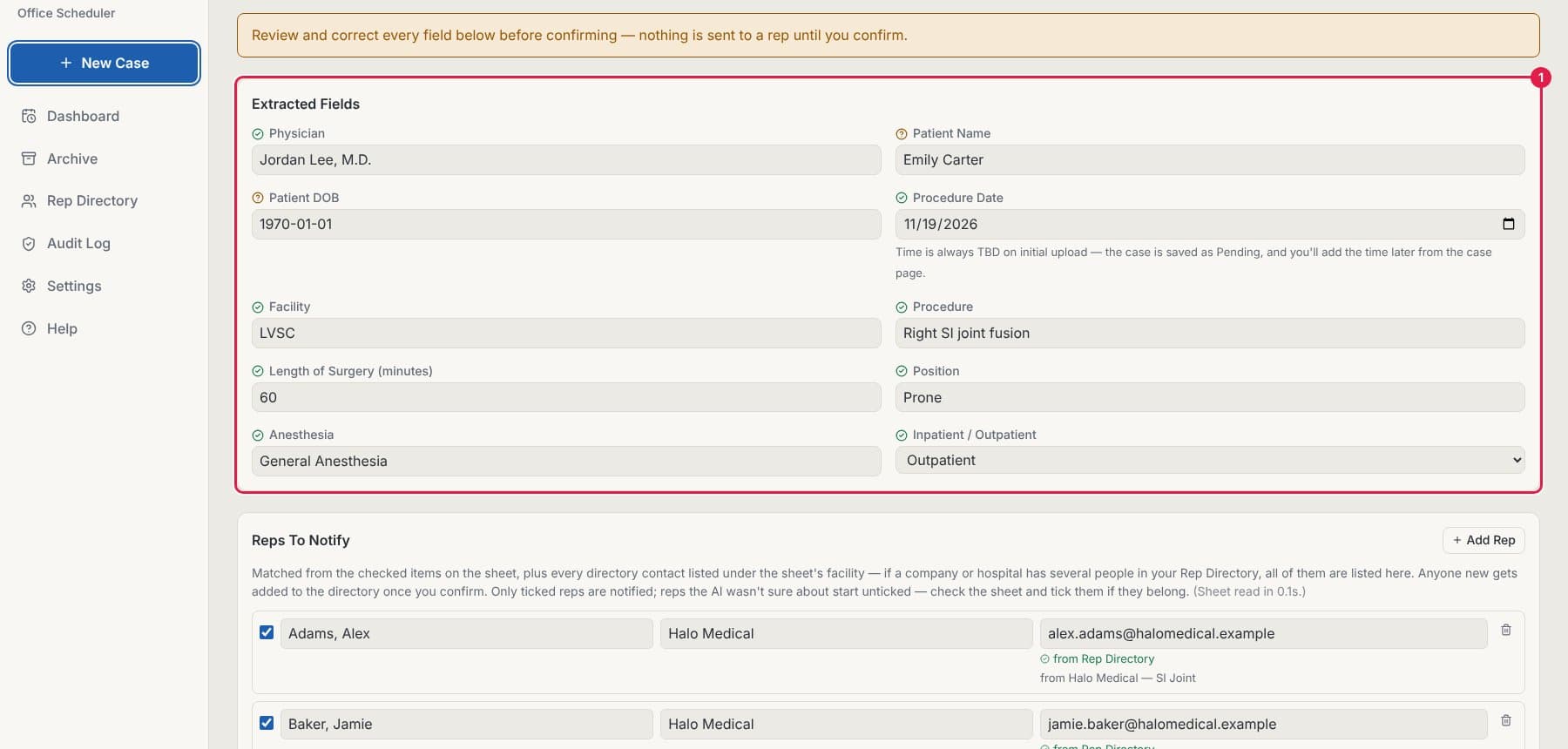
Every field read from the sheet is shown so you can fix anything before it goes out.
- Look over each field in Extracted Fields. A green check means CaseSlate was confident; an orange question mark means check it against the sheet.
- Click into any field to correct it.
- The time always starts as TBD. The case is saved as Pending and you add the time later (see Set the time for a case).
Choose the reps and send the first email
Pick who gets the email, then confirm. Only ticked reps are emailed.
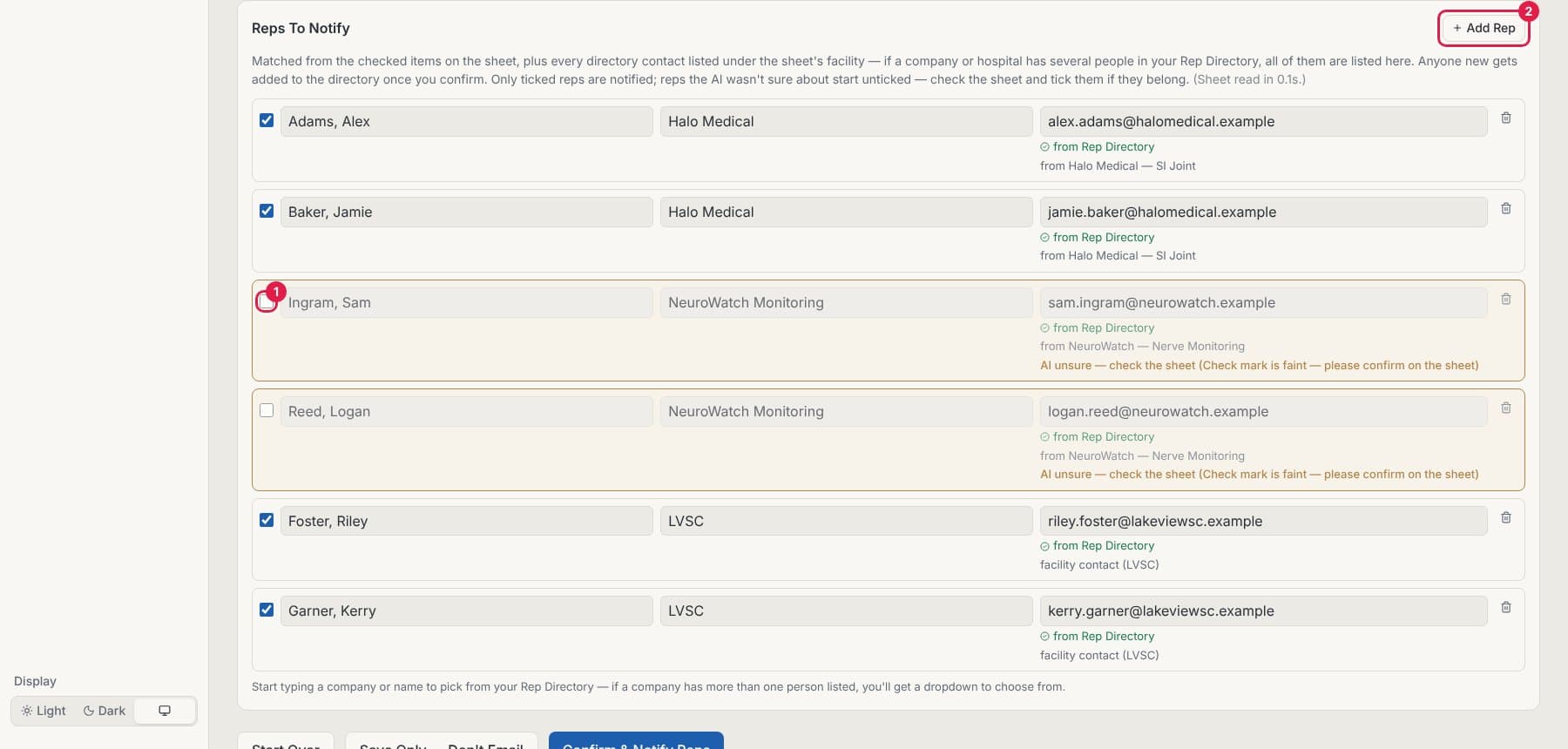
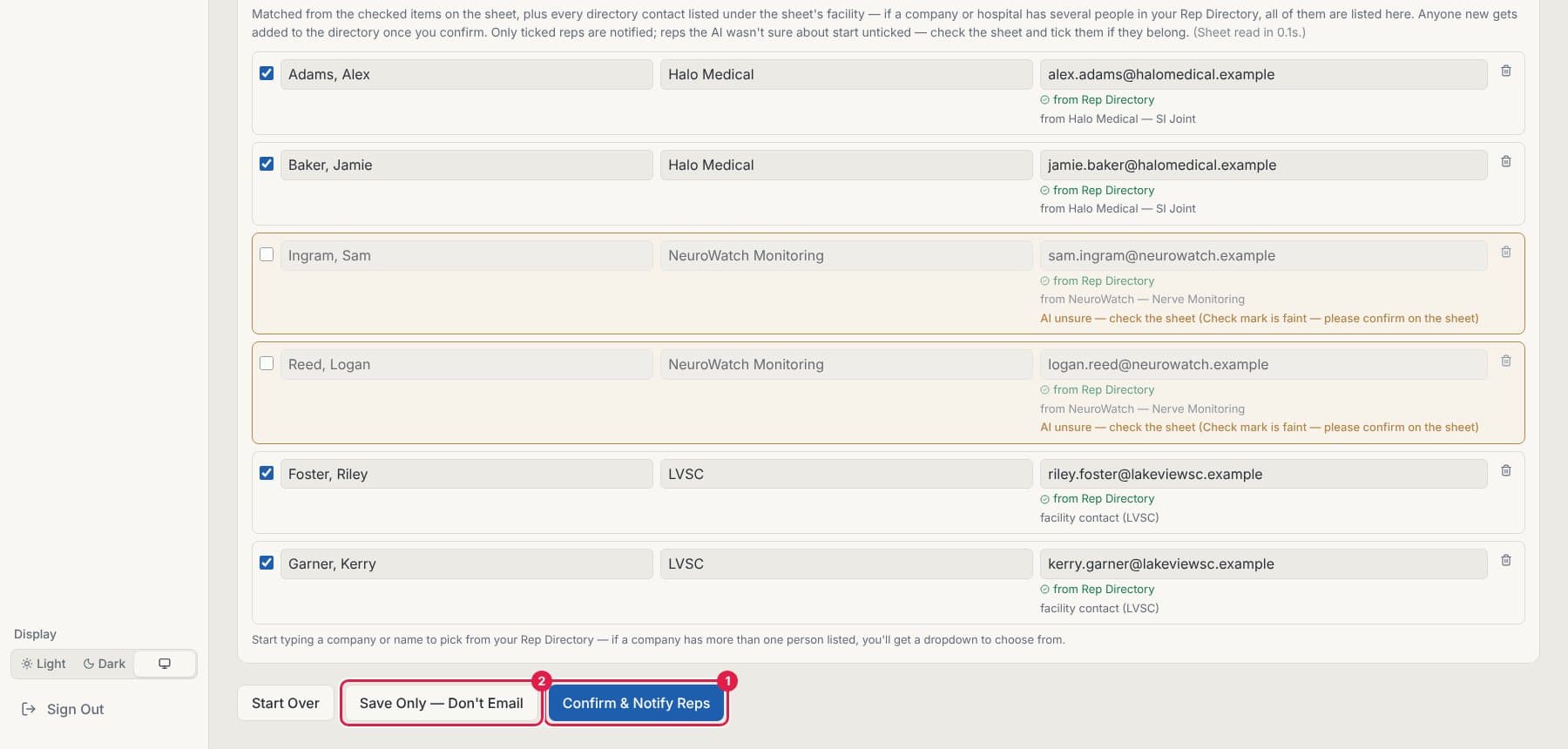
- Scroll to Reps To Notify. CaseSlate lists the reps it matched from the checked items on the sheet, plus the facility's contacts.
- Tick the reps who should get the email. Untick anyone who shouldn't. Reps CaseSlate wasn't sure about start unticked.
- Need someone who isn't listed? Click + Add Rep in that section and start typing a name or company.
- Click Confirm & Notify Reps to save the case and email the ticked reps — or Save Only — Don't Email to save it without sending anything.
Clear a "Possible duplicate" warning
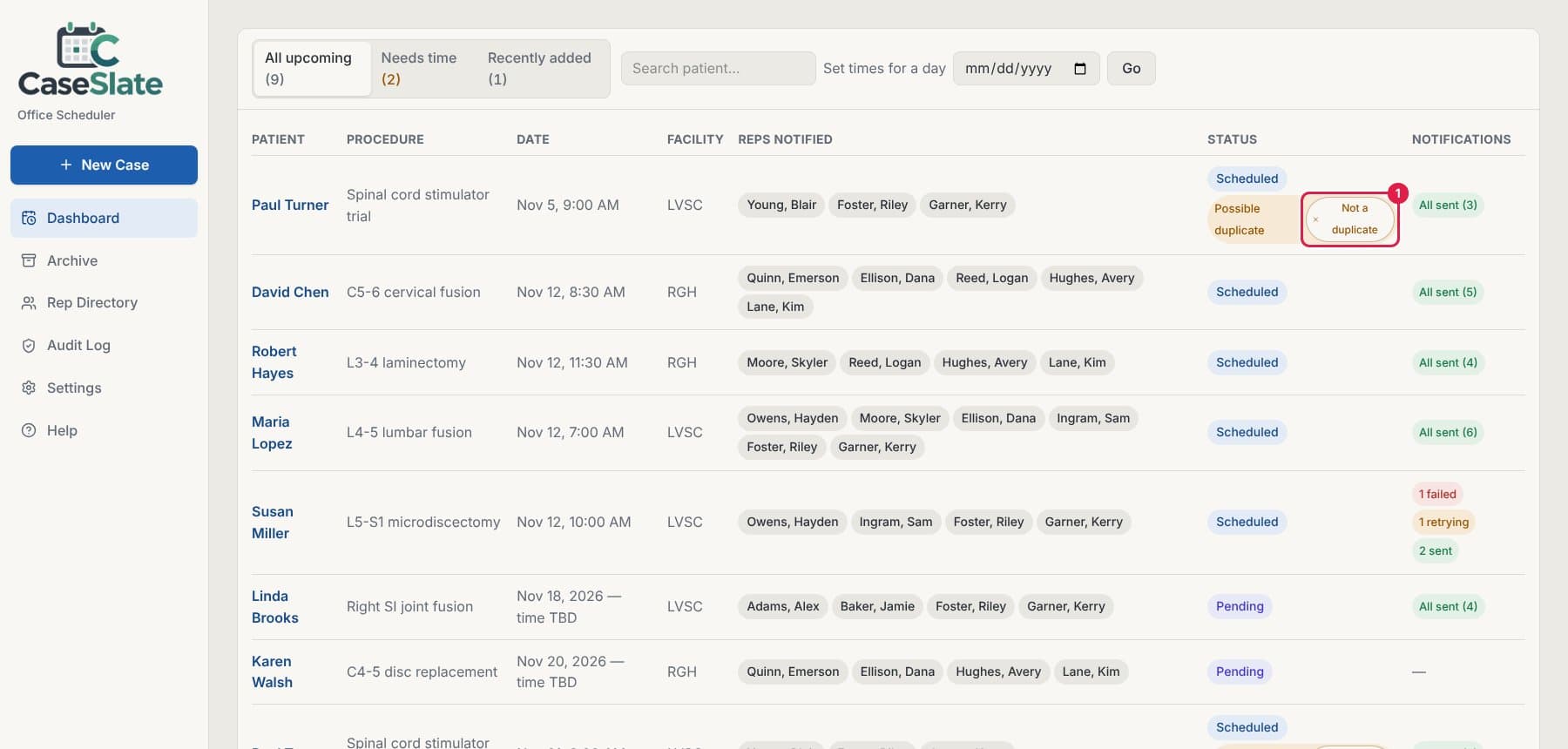
When two cases look alike (same patient name and procedure), the Dashboard flags them as a possible duplicate.
- Open both cases and check whether they're really the same surgery.
- If one is a true duplicate, open it and use Delete case… (or Cancel Case if reps were already told about it).
- If they're different cases, click Not a duplicate next to the warning on the Dashboard. The warning goes away for that pair.
Times & dates
Set or change times for a whole day
Fill in or change the times for every case on one day at once. Each rep gets a single email that lists all of their cases for that day.
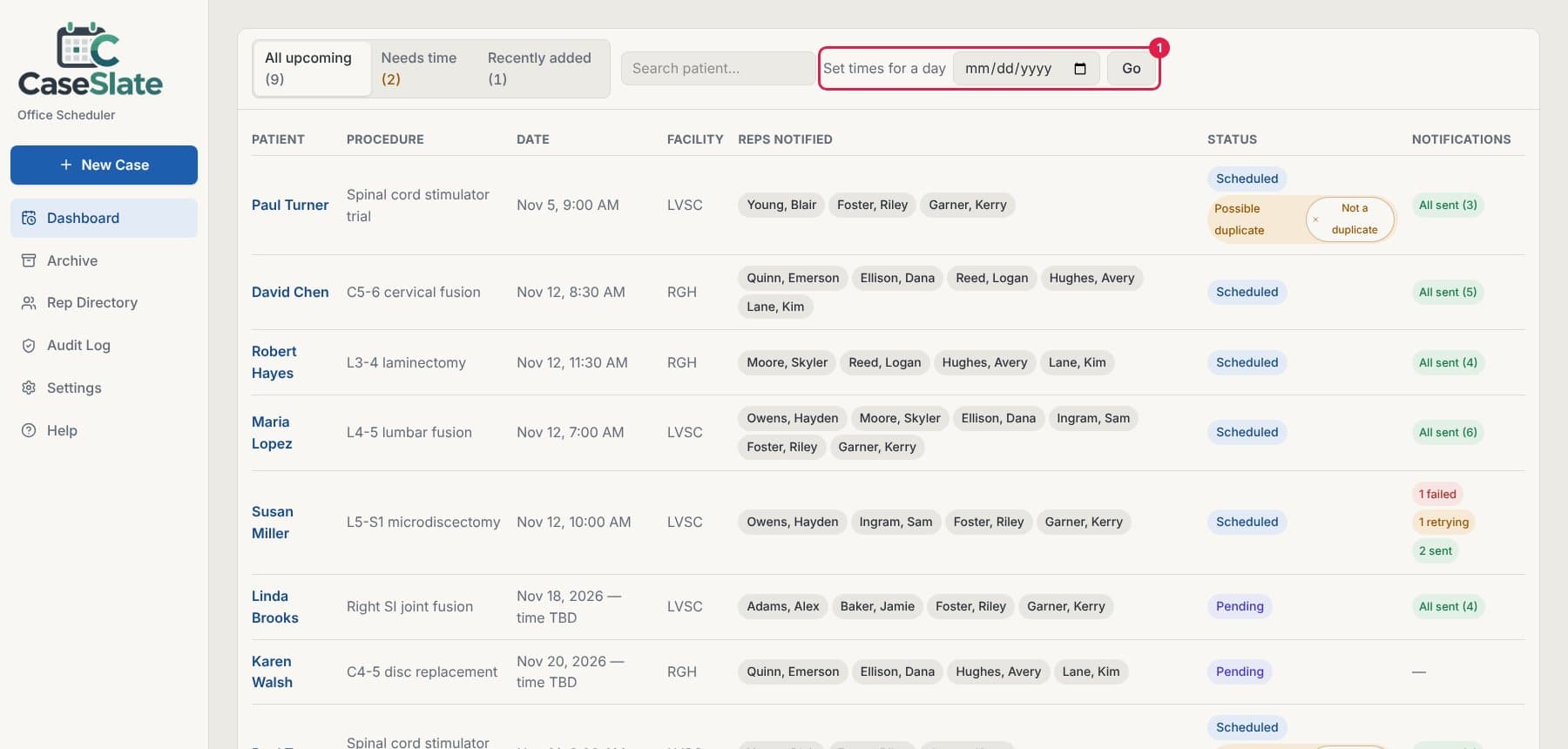
- On the Dashboard, pick the date next to Set times for a day and click Go.
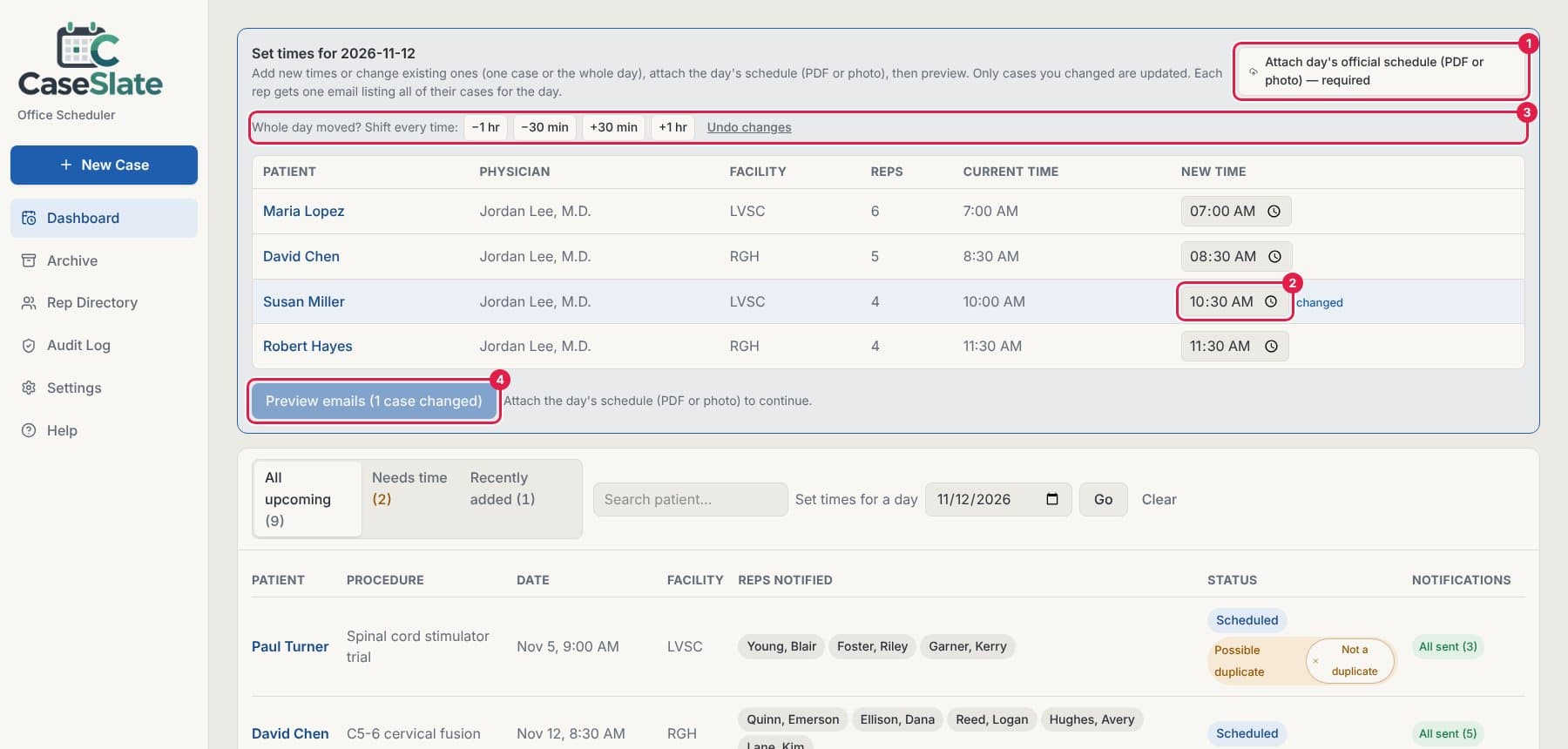
- Click Attach day's official schedule (PDF or photo) and choose the day's schedule. This is required.
- Type the new time for each case in the New Time column. Changed rows are marked changed.
- If the whole day moved, use the Shift every time buttons (−1 hr, −30 min, +30 min, +1 hr). Undo changes puts everything back.
- Click Preview emails to see exactly who will be emailed, then click Save times & send.
- Tip: Only cases you changed are updated and emailed.
- Tip: Emails go out in the background. You can leave the page; the Dashboard shows progress.
Set the time for a case, or change it (same day)
Change one case's time on the same day. The case's reps get one email showing the old and new time.
- Open the case from the Dashboard.
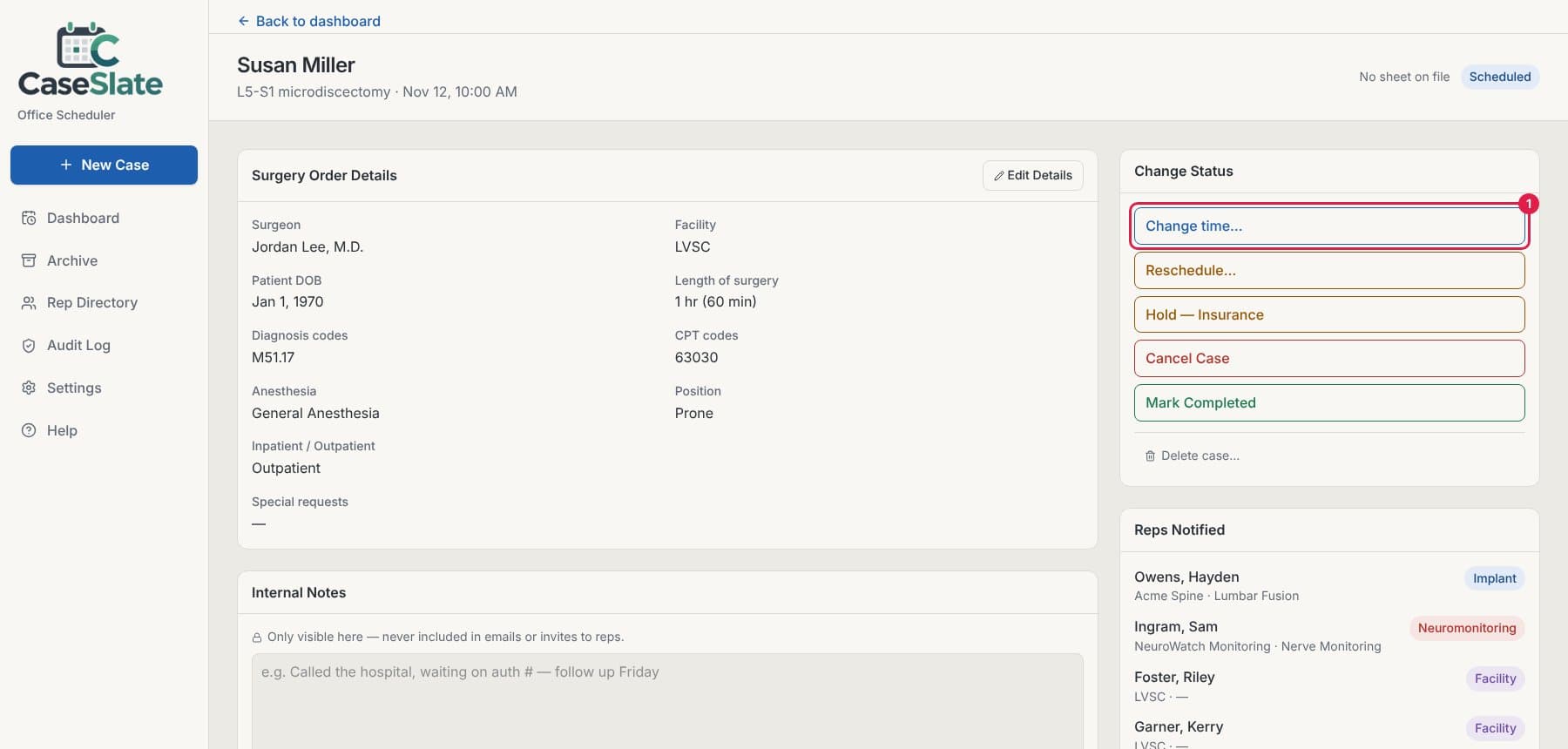
- In Change Status, click Change time….
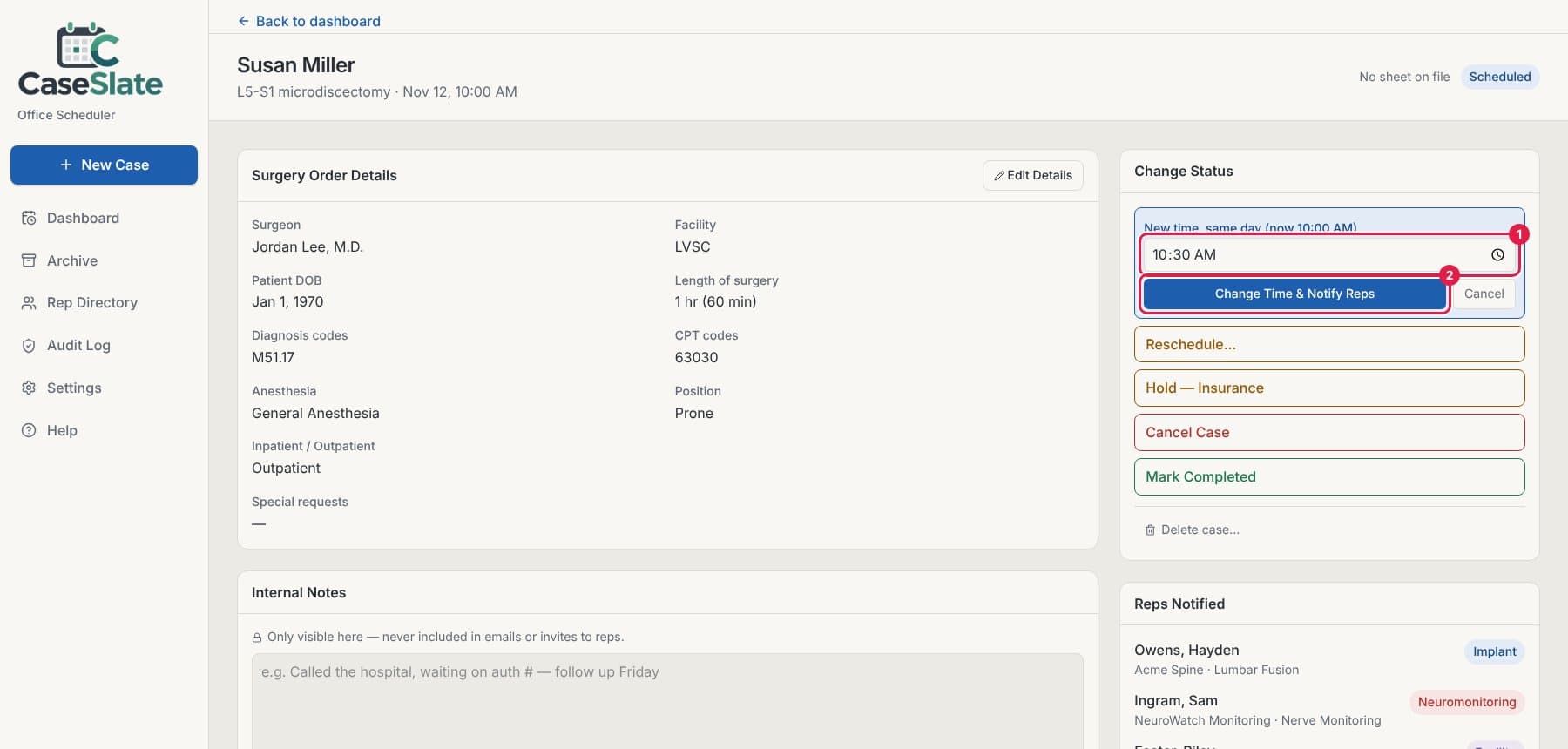
- Pick the new time, then click Change Time & Notify Reps.
- Tip: Changing several cases on the same day? Use Set or change times for a whole day instead so each rep gets just one email.
Move a case to a different date (reschedule)
Move the surgery to another day. You can add the time later.
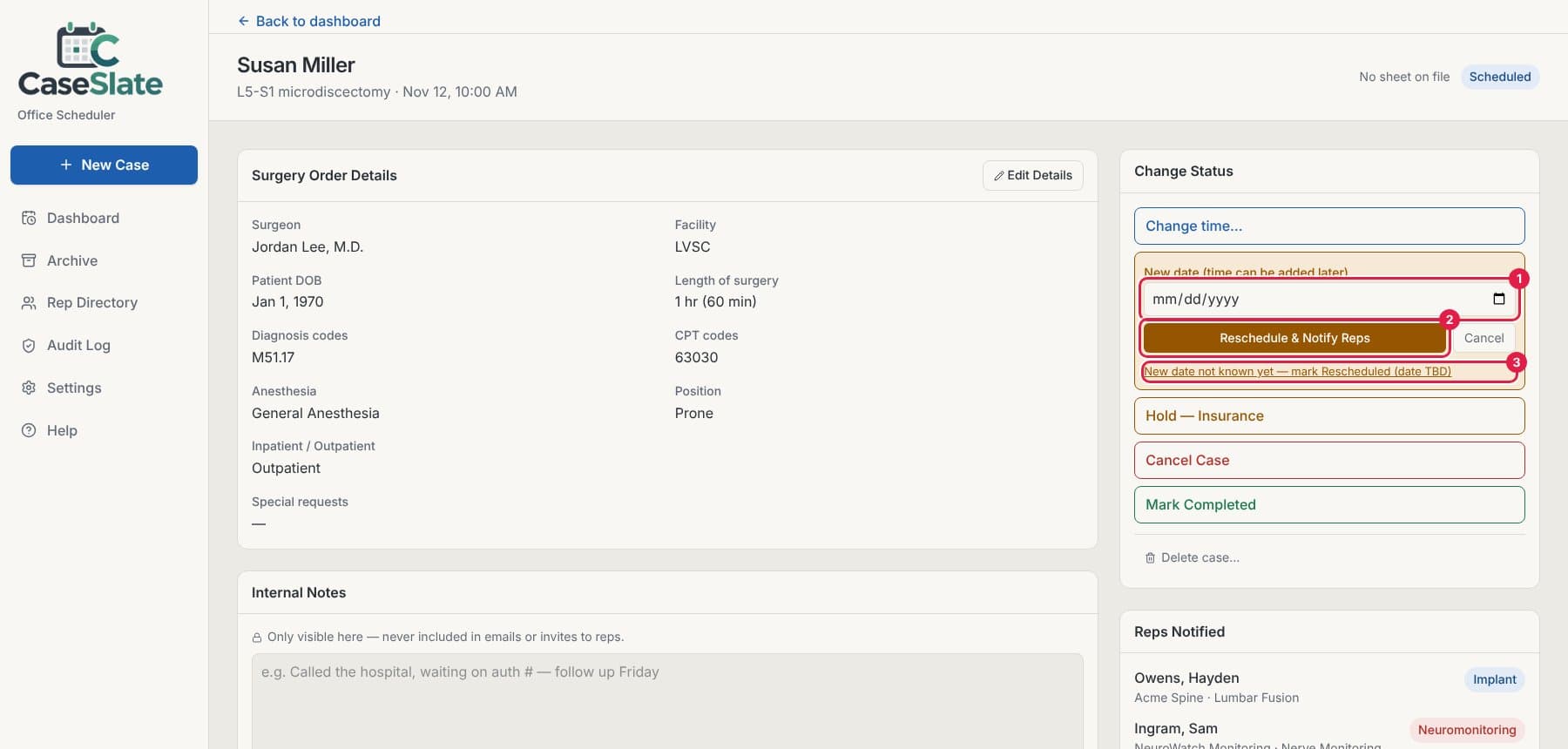
- Open the case and click Reschedule… in Change Status.
- Pick the new date, then click Reschedule & Notify Reps.
- Don't know the new date yet? Click New date not known yet — mark Rescheduled (date TBD).
Changing a case
Put a case on hold, cancel it, or mark it completed
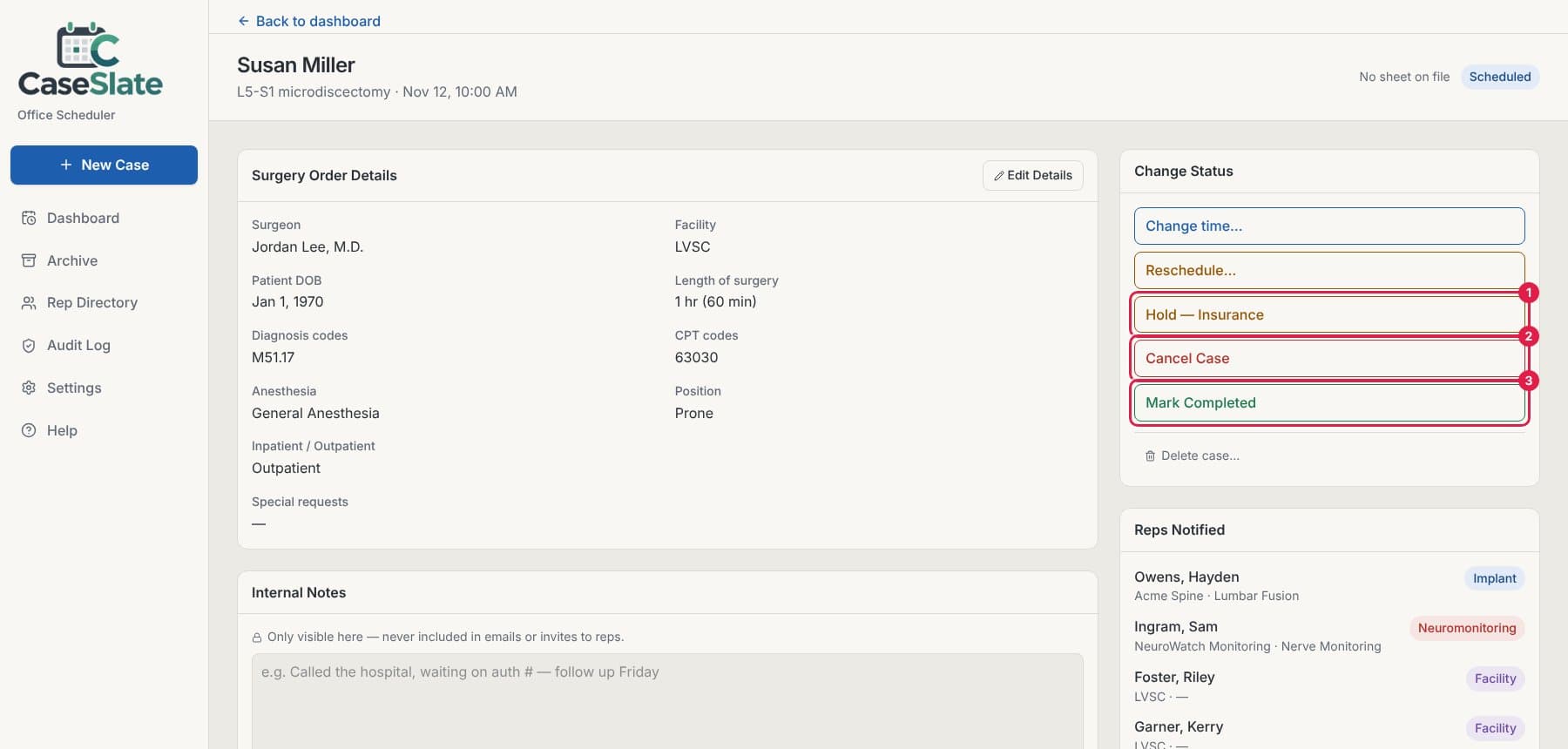
Use the buttons in Change Status on the case page.
- Hold — Insurance: the case is waiting on insurance. Reps are told it's on hold.
- Cancel Case: the surgery isn't happening. Reps are told it's cancelled.
- Mark Completed: the surgery is done. The case moves to the Archive.
- Delete case… removes a case entered by mistake. Use Cancel Case instead if reps were already emailed about it.
Edit a case's details or change the facility
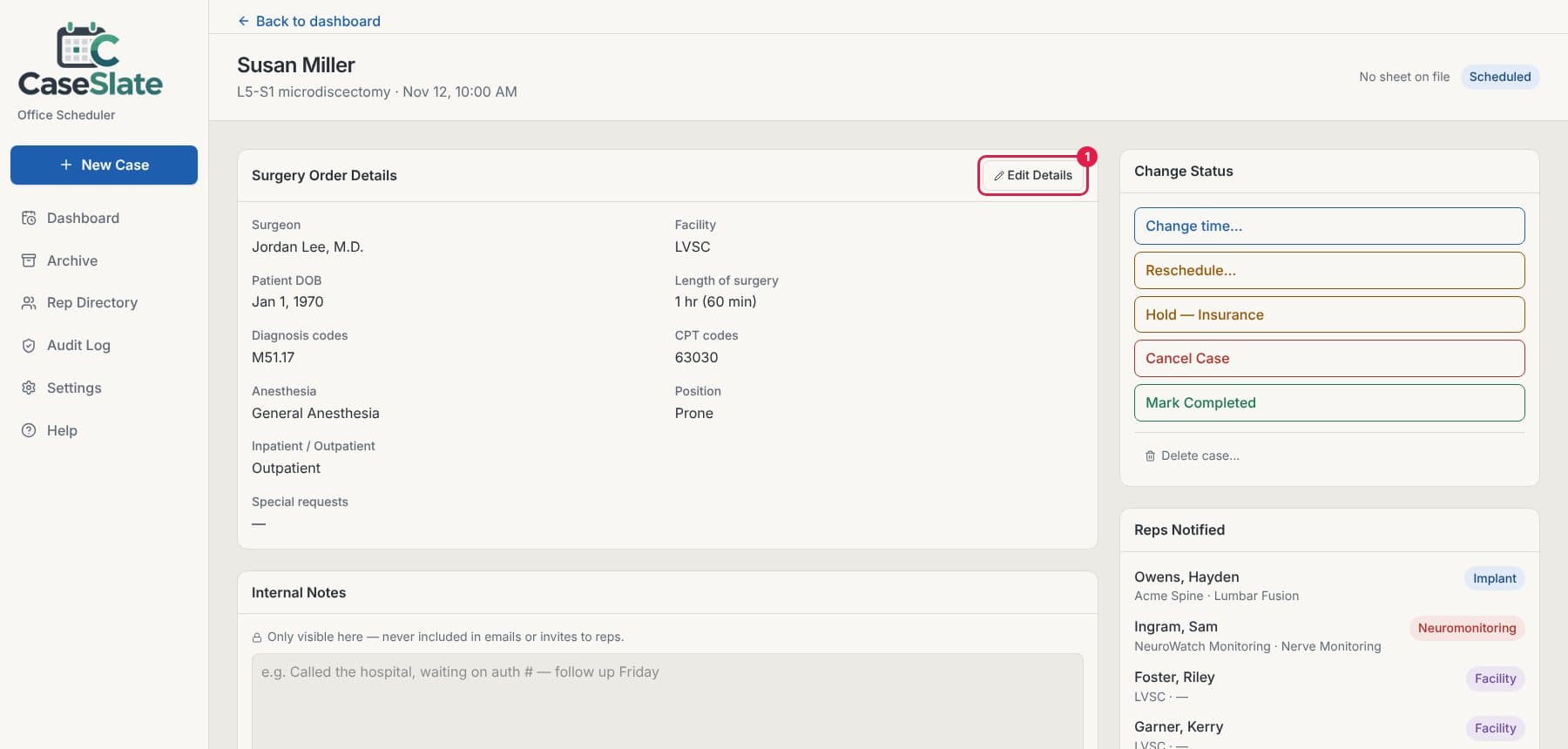
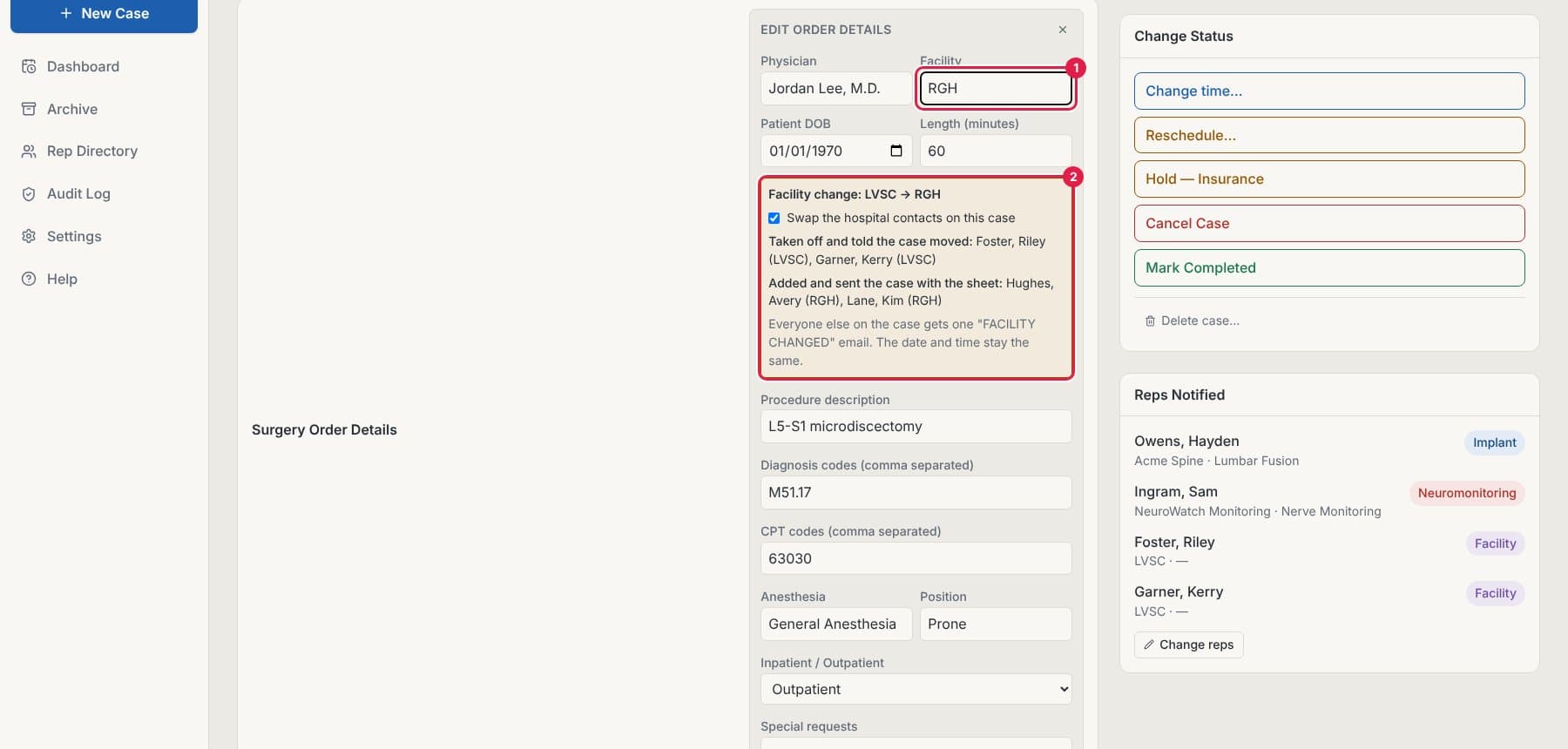
Fix any detail on a case — no more editing the PDF in Adobe. CaseSlate makes a new Surgery Order PDF with your changes and emails it for you. If you change the facility, it also swaps the old facility's contacts for the new facility's.
- Open the case and click Edit Details (top right of Surgery Order Details).
- Change what you need. For a new facility, type it in Facility — a box shows which facility contacts will be taken off the case and which will be added.
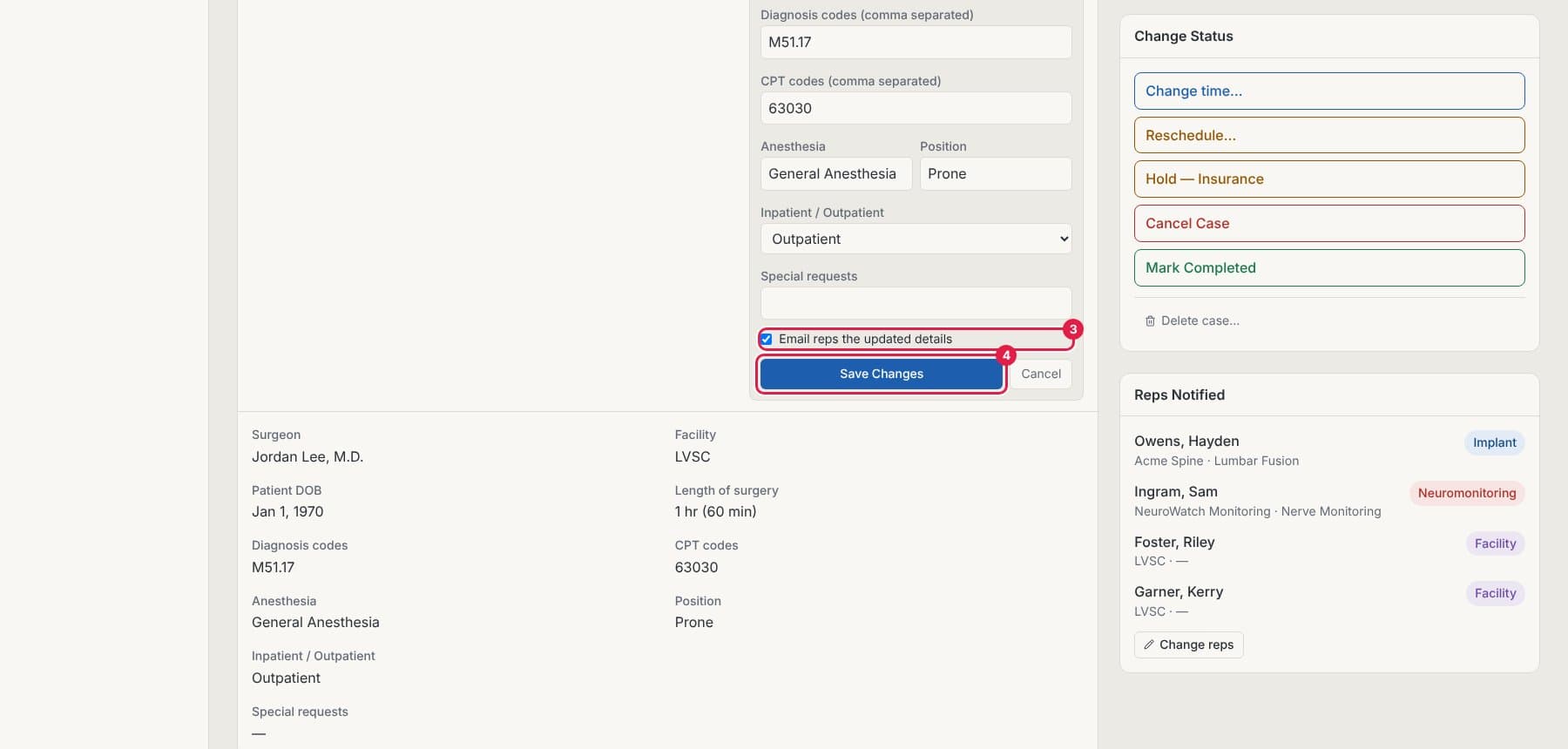
- Leave Email reps the updated details ticked, then click Save Changes.
- Done. Everyone on the case gets an email that says what changed (for example "Facility – Moved to RGH"), with a new Surgery Order PDF showing the updated details, plus the rest of the original order (page 2 onward).
- Tip: You never need to edit or re-scan the original PDF. The new Surgery Order PDF replaces page 1 of the order in the email.
- Tip: The new facility's contacts get the case with the new PDF; the old facility's contacts are told the case moved.
Find past, completed and cancelled cases
Finished and cancelled cases move off the Dashboard into the Archive.
- Click Archive in the left menu.
- Cases are filed by facility, year and month. Click any case to see its sheet, reps, notes and email history.
Emails to reps
Check that emails went out (and resend)
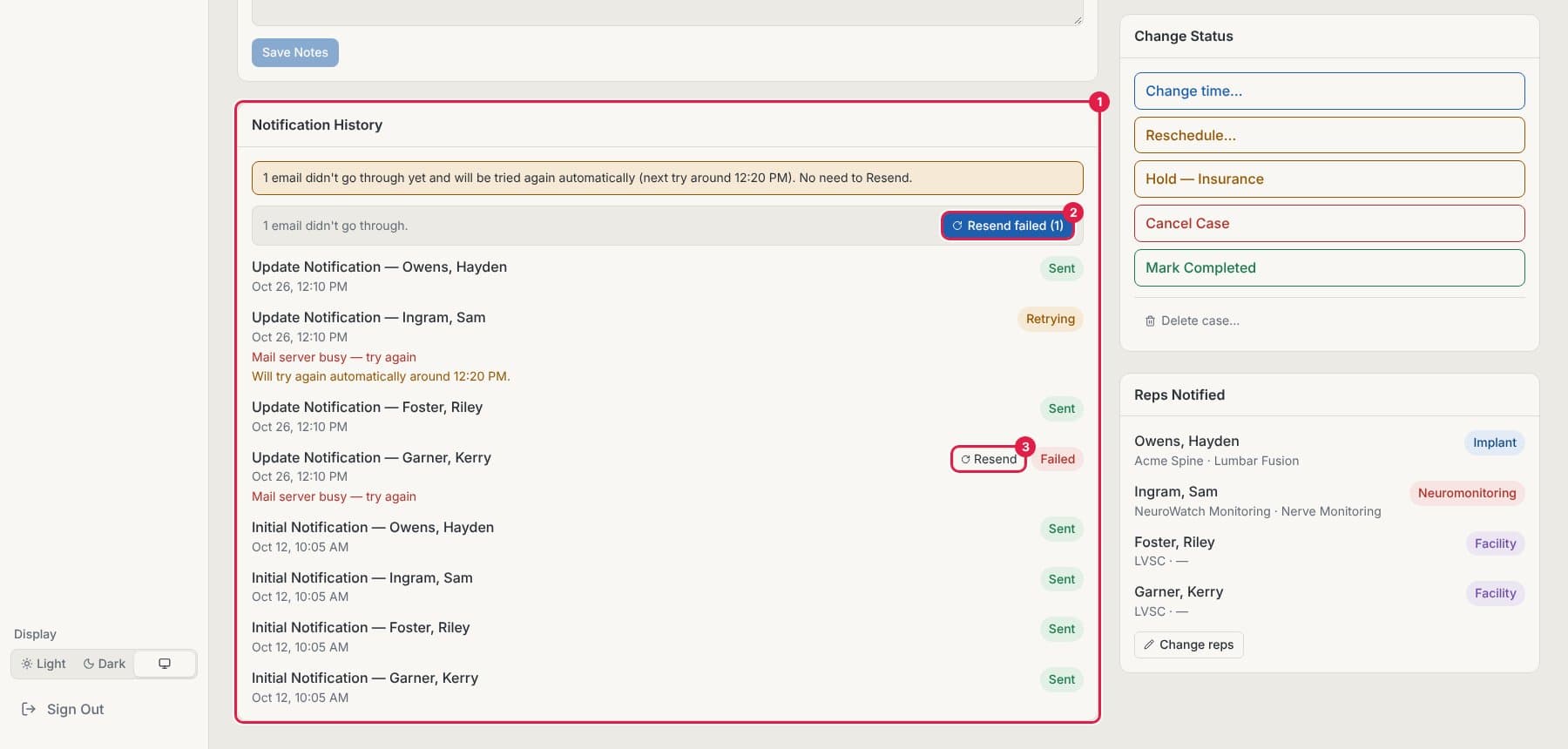
Every email for a case is listed in Notification History with its status.
- Open the case and scroll to Notification History.
- Sent means it went out. Sending… means it's on its way — the page updates on its own.
- Retrying means the email provider pushed back for a moment. CaseSlate tries again automatically, so you don't need to do anything.
- Failed means every automatic try failed. Click Resend on that row, or Resend failed to resend them all.
Reps & facilities
Add or remove reps on a case
Change who is on a case after it's been saved.
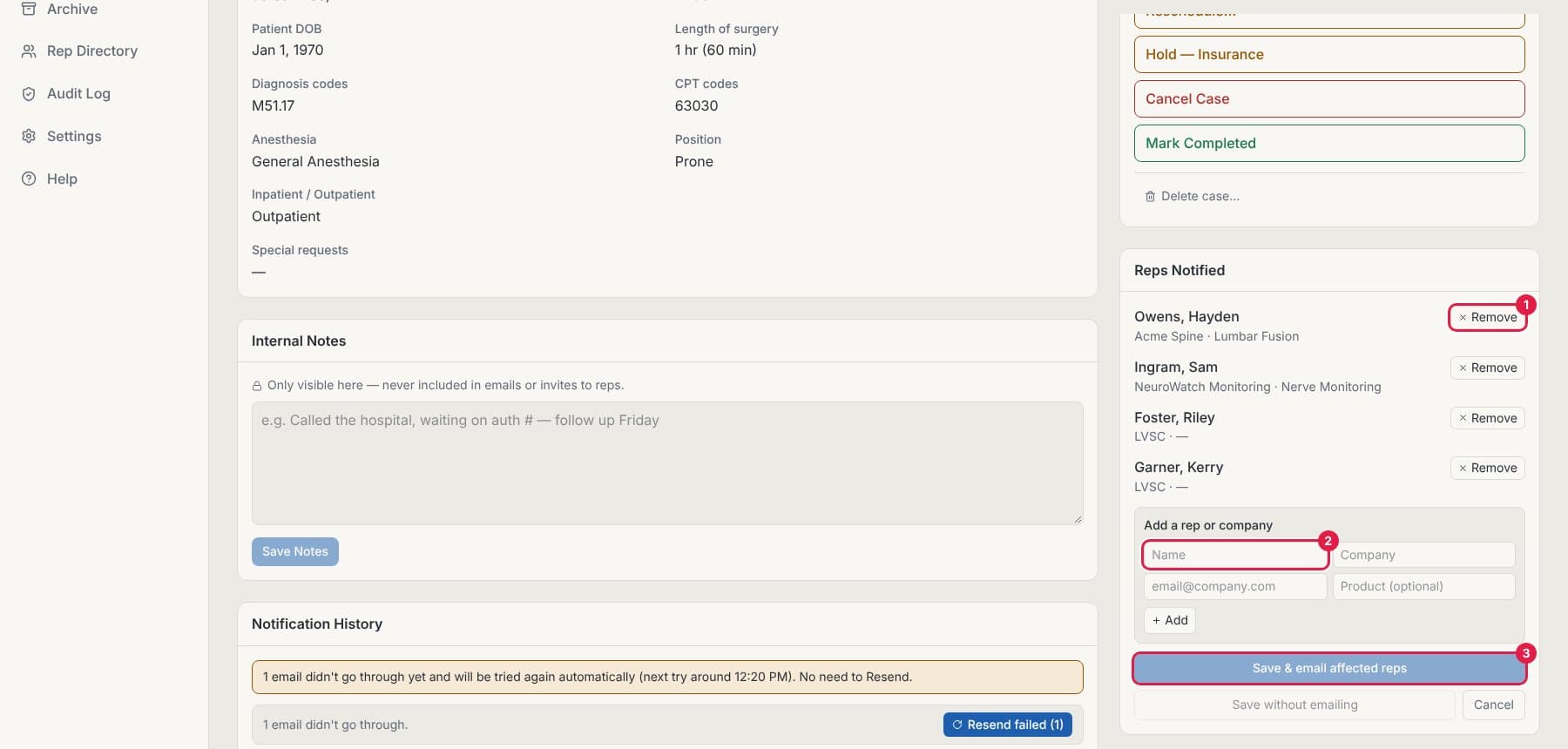
- Open the case and scroll to Reps Notified.
- Click Change reps.
- Click Remove next to anyone who shouldn't be on the case.
- To add someone, type their name or company under Add a rep or company and click Add.
- Click Save & email affected reps (only the added and removed reps are emailed), or Save without emailing.
Add a rep to the Rep Directory
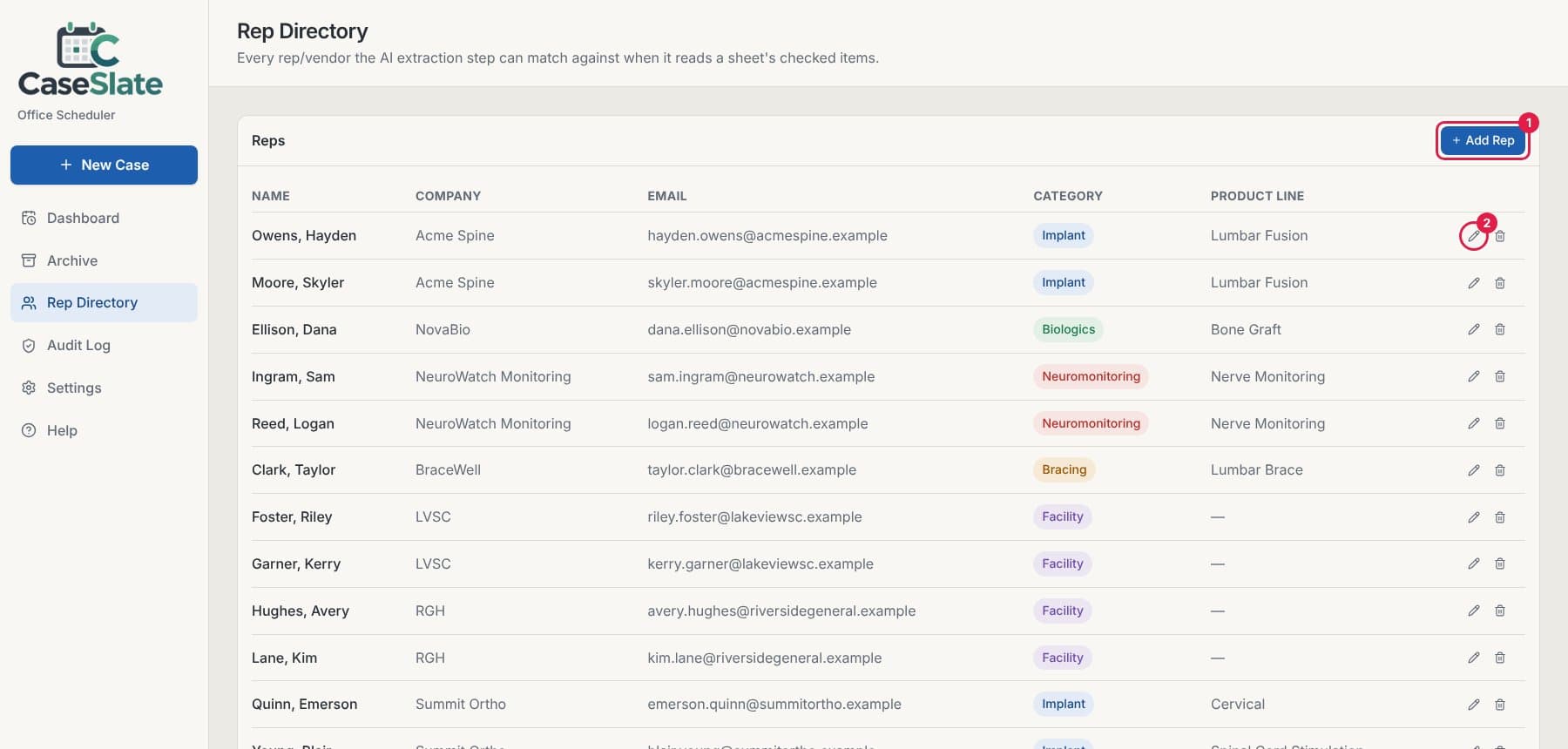
The Rep Directory is the list CaseSlate matches against when it reads a sheet. Add a rep once and they're suggested on every matching case.
- Click Rep Directory in the left menu.
- Click + Add Rep.
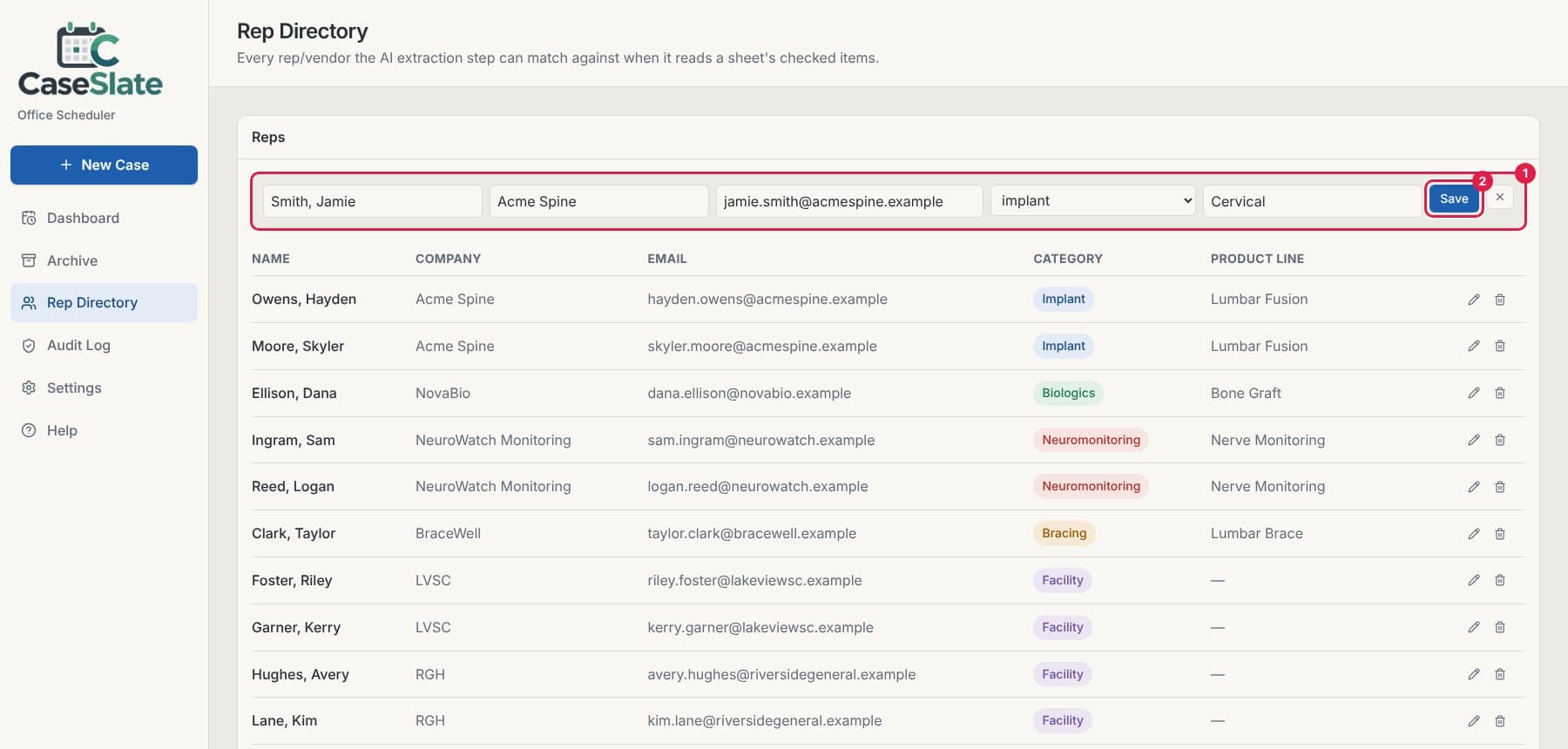
- Fill in the name (Last, First), company, email, category and product line.
- For a hospital or surgery center contact, choose the Facility category and put the facility's name in the company field.
- Click Save.
- Tip: Reps you add on the review screen with + Add Rep are saved to the directory too once you confirm.
Edit or remove a rep
Keep the directory current when reps change territories or emails.
- Click Rep Directory in the left menu.
- Click the pencil next to a rep to edit them, make your changes and save.
- Click the trash can to remove a rep from the directory.
Settings
Connect your office's email account
CaseSlate sends every email from your office's own account, so reps see your office as the sender.
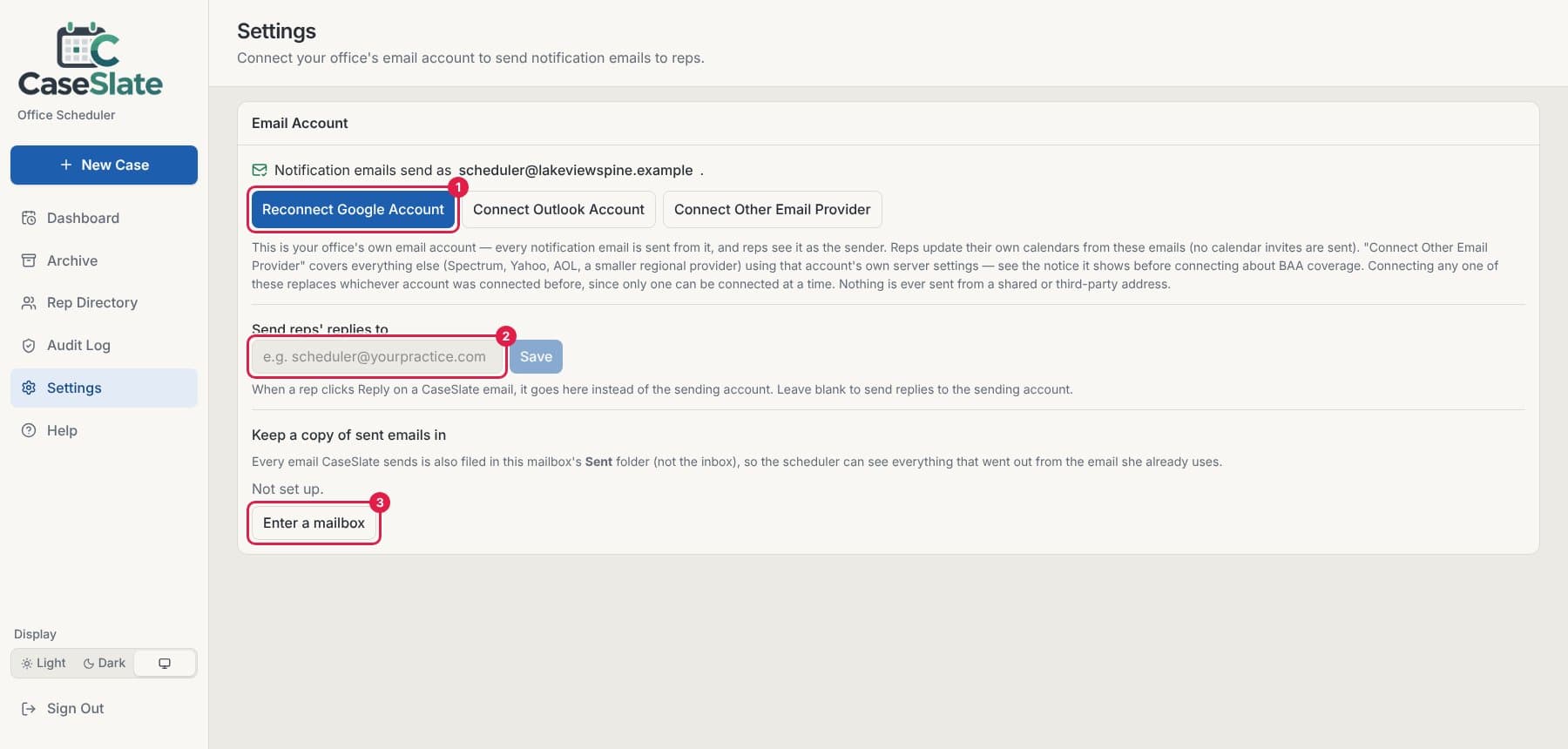
- Click Settings in the left menu.
- Click Connect Google Account (or Connect Outlook Account). Sign in with the office's email account and allow sending.
- That's it. The line at the top shows which address emails are sent from, and the button changes to Reconnect Google Account.
- Tip: Connecting a new account replaces the old one. Only one account sends at a time.
Send replies to another inbox and keep sent copies
Have reps' replies land in the inbox you already work from, and see every CaseSlate email in that mailbox's Sent folder.
- In Settings, type the address under Send reps' replies to and click Save. When a rep clicks Reply, it goes there.
- Under Keep a copy of sent emails in, click Enter a mailbox and sign in to the mailbox you work from.
- Every email CaseSlate sends is then filed in that mailbox's Sent folder (not the inbox).
Still stuck? Email blaketarver@gmail.com.